
Experiencing a Velocity Executor error? This guide covers every known error with step-by-step solutions — from startup crashes and injection failures to missing DLL files and script execution issues. Most errors are fixed in under 5 minutes.
Latest Version 2.8.5 — Fixes most known errors | Feb 4, 2026
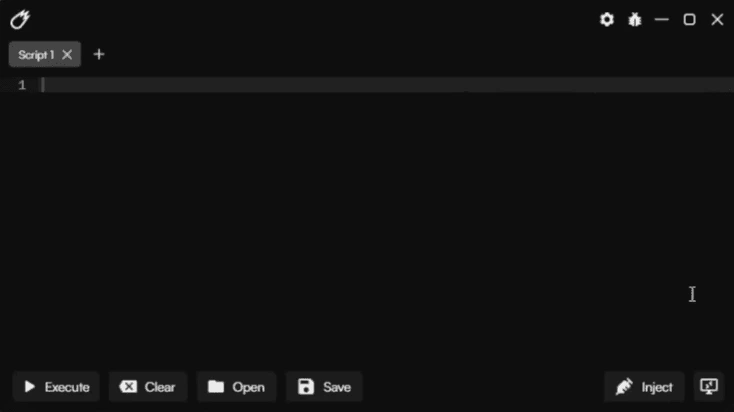
Velocity Executor Pages
Quick Fix Checklist — Try These First
Before diving into specific errors, run through this checklist. These steps resolve roughly 80% of all Velocity Executor errors.
-
1
Update Velocity: Always use the latest version. Delete the old folder entirely and download v2.8.5 fresh from velocity.com.de.
-
2
Disable Windows Defender: Open Windows Security → Virus & threat protection → Real-time protection → Off. Also add the Velocity folder to exclusions.
-
3
Run as Administrator: Right-click Velocity.exe → Run as administrator. Do NOT run from inside a ZIP or RAR archive — extract first.
-
4
Install Visual C++ Redistributables: Install both x64 and x86 versions of Visual C++ 2015–2022 Redistributable from Microsoft.
-
5
Install .NET Framework 4.8: Required for Velocity to run. Install from Microsoft's official download page if not already present.
-
6
Restart your PC: A full reboot clears locked processes and resolves many random errors after antivirus exclusions or new installs.
Still broken after the checklist? Find your specific error message below.
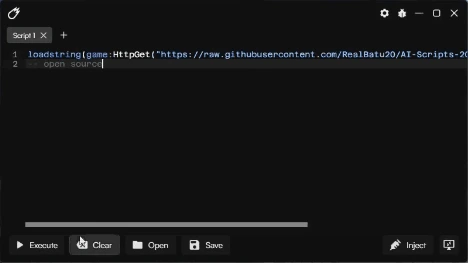
Most Velocity Executor errors are caused by antivirus interference or outdated runtime libraries
Startup & Launch Errors
Velocity Executor won't open — nothing happens on double-click
Fix: Your antivirus silently deleted Velocity.exe or its dependencies. Add the Velocity folder to Windows Defender exclusions, then re-download a fresh copy. Ensure you right-click → Run as administrator. Also check your Windows Event Viewer (eventvwr.msc) under Windows Logs → Application for the specific error code.
Error: "VCRUNTIME140.dll was not found" or "MSVCP140.dll missing"
Fix: These DLL errors mean Visual C++ Redistributable is not installed or corrupted. Install Microsoft Visual C++ 2015–2022 Redistributable (both x64 and x86 versions). If already installed, uninstall both versions, restart, then reinstall.
Error: "This app can't run on your PC"
Fix: You are trying to run a 64-bit executable on a 32-bit Windows installation. Velocity requires 64-bit Windows 10 or Windows 11. Check under Settings → System → About → System type. If it says "32-bit", your system is not compatible.
Velocity opens briefly then immediately closes
Fix: An antivirus is terminating the process after launch. Add the full Velocity folder path to your antivirus exclusions list, not just the .exe file. Also try extracting Velocity to C:\Velocity\ instead of the Downloads or Desktop folder, as some security policies restrict those locations.
Injection Errors
Error: "Failed to inject" or "Injection failed"
Fix: This is the most common Velocity Executor error. Steps to resolve: (1) Make sure Roblox is fully loaded in-game, not on the loading screen. (2) Close all other Roblox windows. (3) Restart Roblox and wait 30 seconds after entering a game before injecting. (4) Update Velocity — Roblox may have patched the current injector. (5) Run both Roblox and Velocity as administrator.
Error: "Failed to attach to process" or "Cannot find Roblox process"
Fix: Velocity cannot find the Roblox process. Make sure Roblox is running and fully loaded. If using the Microsoft Store version of Roblox, try switching to the web browser (roblox.com) version instead. Some Microsoft Store apps run in isolated containers that block process attachment.
Injection succeeds but Roblox crashes immediately
Fix: (1) Update your GPU drivers. (2) Lower Roblox's graphics quality to 1–3. (3) Close RAM-intensive background apps before injecting. (4) Try joining a low-population server or a private server. (5) Disable any other overlays running (Discord, GeForce Experience) which may conflict.
Error: "Outdated — please update Velocity"
Fix: Roblox released an update that requires a new Velocity version. Delete the old Velocity folder completely and download the latest version from velocity.com.de. Velocity typically releases updates within 2–4 hours of a major Roblox patch.
Script Execution Errors
Script runs but nothing happens in game
Fix: The script may be game-specific and not compatible with the current version of that game. Verify the script was written for the current game version. Some scripts require you to be in a specific location or game state. Try a simple test script like print("test") — if that works, the issue is the script itself, not Velocity.
Error in script output: "attempt to index nil value" or similar LuaU errors
Fix: This is a script error, not a Velocity error. The script is trying to access a game object that doesn't exist or has a different path in the current game version. The script needs to be updated by its author. These errors appear in the Velocity output console — read the line number and variable name to diagnose.
loadstring() throws an error or returns nil
Fix: The remote URL returned invalid content (HTML error page instead of Lua code) or the script has a syntax error. Test the URL in a browser first to confirm it returns plain Lua code. Check for syntax errors using the pcall(loadstring, code) pattern to get the specific error message.
Antivirus & False Positive Errors
Windows Defender flags Velocity as a trojan or malware
Fix: This is a false positive caused by the DLL injection technique all executors use. Velocity is clean and only downloaded from velocity.com.de. To resolve: Open Windows Security → Virus & threat protection → Manage settings → Add or remove exclusions → Add a folder exclusion pointing to your Velocity folder. Then re-download and extract Velocity fresh.
Third-party antivirus (Malwarebytes, Kaspersky, Avast) blocks Velocity
Fix: Each antivirus has a different exclusion menu. Generally: open your antivirus → Settings/Exclusions/Whitelist → add the full path to your Velocity folder. After adding the exclusion, you may need to temporarily disable real-time protection during the first launch. Re-enable it afterwards — the exclusion will keep Velocity accessible.
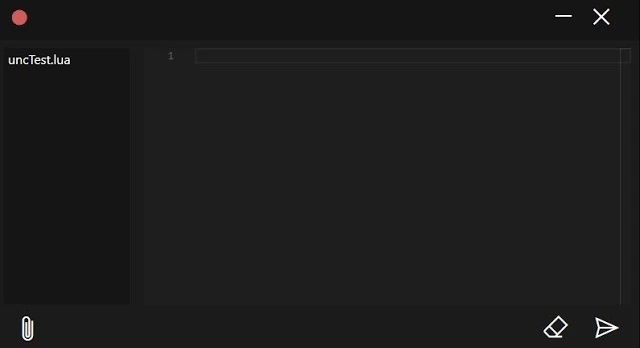
After applying the correct fix, Velocity runs smoothly with full script execution capability
System Requirements — Are You Compatible?
Some Velocity Executor errors are caused by an incompatible system. Check that your PC meets all requirements:
- Windows 10 (64-bit) version 1909 or higher — or Windows 11 (all versions)
- 4GB RAM minimum (8GB recommended for stable injection)
- 500MB free disk space on the installation drive
- .NET Framework 4.8 or newer
- Visual C++ 2015–2022 Redistributable (x64 and x86)
- DirectX 11 compatible graphics card
- Roblox installed via web browser (not Microsoft Store) recommended
Fixed Your Error? Download the Latest Velocity
Always use the latest version of Velocity Executor — v2.8.5 fixes all known injection and compatibility errors from previous versions.